Field Mapping
Field mapping in SyncNow allows you to synchronize content from one field in a source entity to another field in a target entity. This guide covers basic field-to-field mapping operations. Advanced operations and transformations will be explained in a separate article.
Mappings can be inherited from a global mapping, which includes entities, links, and field mappings. After inheriting from a global mapping, you can still customize and add new fields or entities to the mapping for your specific process.
📝 Step-by-Step Guide
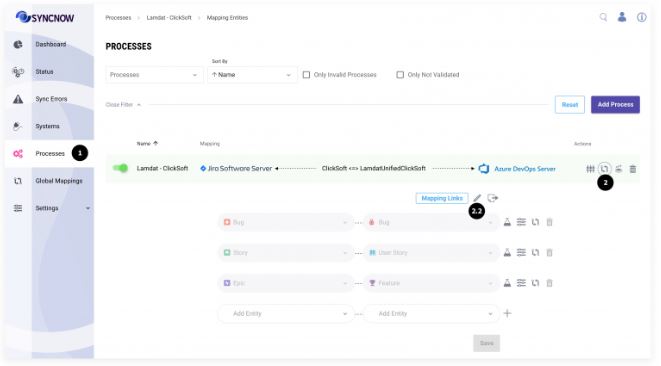
1️⃣ Navigate to the Processes Page
- Go to the Processes page to begin setting up your field mappings.
2️⃣ Open the Mapping Entities Interface
- Click the Mapping Entities button for your process.
- If the process inherits a global mapping, press the Edit Global Mapping button.
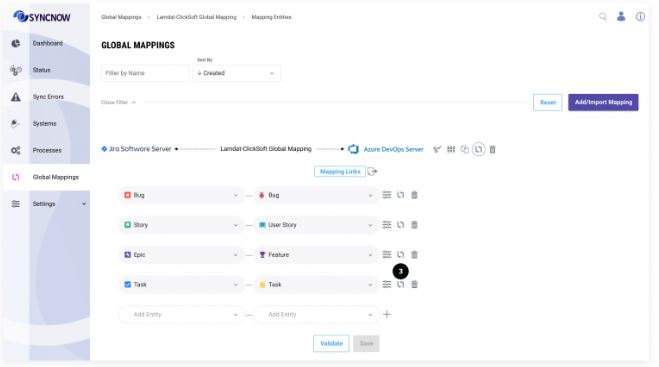
3️⃣ Open Fields Mapping
- Find the entity pair you wish to map fields for and press the Fields Mapping button next to it.
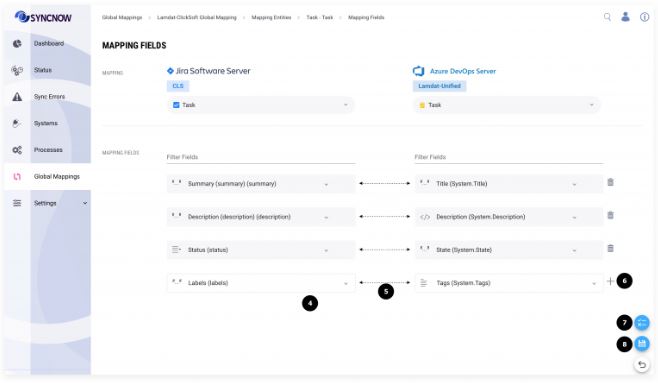
4️⃣ Select Field Pairs
- Select the field pairs that should be synchronized between each other (e.g., Summary ↔ Title, Status ↔ State).
- Choose the synchronization direction for each pair:
- Unidirectional: Sync from source to target only.
- Bidirectional: Sync changes in both directions.
5️⃣ Add Additional Field Pairs
- Press the Plus button to add more field pairs as needed.
6️⃣ Validate the Mapping
- Press the Validate button to ensure that your changes do not disrupt any processes already inheriting the global mapping.
7️⃣ Save the Mapping
- Press the Save button to save your field mapping settings.
Tip:
Use field mapping to ensure that critical information is accurately synchronized between systems. Regularly review and update your mappings as your business needs evolve.